
Good news! Your SaaS application (NoseHairRemover.io) went viral on Reddit last month and numbers are through the roof! Investors came spilling in and you have enough runway to last you the next 2 years! If you can keep things trucking you’re only one acquisition away from spending the rest of your life on the beach with your dog.

Hold On There Buddy
Look all of that sounds great and we’re gonna get there one day. But until then, we have a LOT of work to do! So far we’ve been working with a small team of 5 people. It was easy to keep track of what and how everybody was working. Now that we’ve gone viral we have to hire 100 new engineers and we have to do it quickly! How are we going to keep track of all the changes and ensure they follow the company rules?
AWS Config Has Your Back
AWS Config is a service that watches all of your AWS resources, tracks changes to them, and then will report back to you if they don’t match rules you have defined. A few examples of how this can help our team are…
Compliance and Auditing
Are we compliant with security standards like HIPAA or PCI? We can create rules to check our technical configurations against these requirements.
Security
We can create rules to check for things such as Security Groups that are wide open to the public or unencrypted data volumes.
Change Management
AWS Config keeps a record of the resource configuration looks like along the way. If something was changed and everything blew up you can easily go look at what it looked like yesterday and adjust that back.
Wait Isn’t This What CloudTrail Does?
Nope. Initially these services might appear similar and, while they compliment each other nicely, they actually do different things…
| AWS Config | AWS CloudTrail |
|---|---|
| Logs the actual configuration of that same piece of infrastructure along the way. You will have a record of what it looked like before and after the API call. It will also check the config against rules you define to see if it is compliant. | Logs API calls against infrastructure so you have a record of who tried to do what. |
A Mile High View
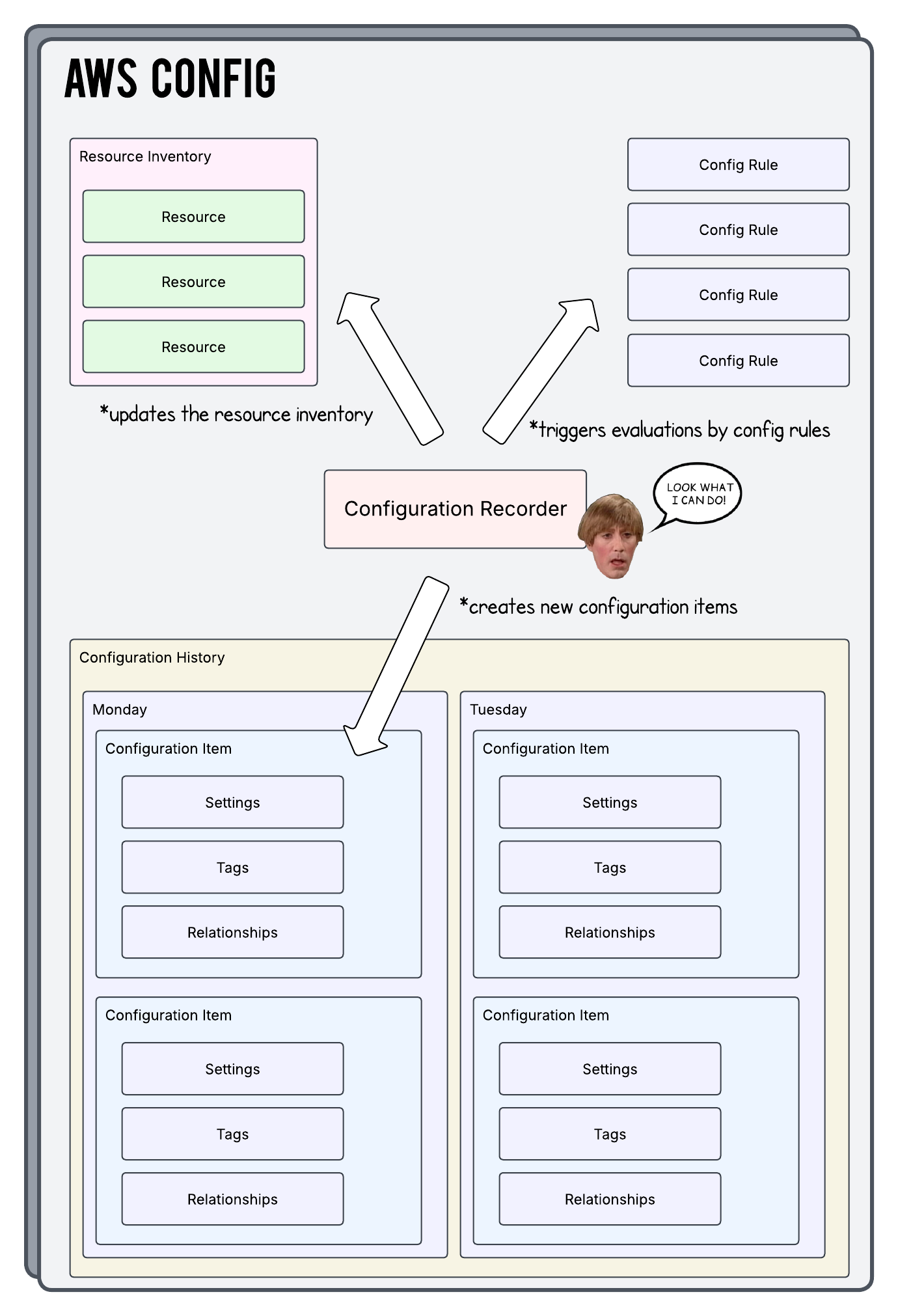
Below is an outline of what this all looks like from space. Notice we have parts like the Resource Inventory, Config Rules, and the Configuration History. The special boy there in the middle is the Configuration Recorder and he does a lot of the work. Let’s dig a bit deeper into some of these pieces below…
Resource Inventory
The Resource Inventory is basically a giant pile of all the resources that the Configuration Recorder is currently watching. It can also be thought of as the “current state” of the account in that each resource in here also has a copy of it’s latest Configuration Item attached. This copy is used by the AWS Config Rules. We’ll talk more about Configuration Items and AWS Config Rules further down below.
AWS Config Rules
AWS Config Rules check our resources for compliance. What is compliance? Compliance is whatever we want it to be in that we can adjust and / or create as many rules as we like…
- Is every S3 bucket private?
- Is every database volume encrypted?
Does my wife still find me attractive?- Does this tag exist on all of my resources?
Types Of Rules
There are two types of rules you can use:
AWS Managed Rules
These rules are packaged up and provided to you by AWS and are the quickest way to get started. You won’t be writing any custom code you basically just turn these on and maybe provide a parameter or two that it needs.
Custom Lambda Rules
If you want to get nerdy and / or fancy you can also write your own logic inside of a Lambda Function and tell Config to use it as it’s rule.
How Do We Trigger Rules?
So we have our rules sitting there picking their nose how do we trigger them?
| Change-Triggered | Scheduled |
|---|---|
| Have rules run immediately after a resource is created or changed | Run on a specified schedule such as every hour, every 12 hours, etc. |
Know that each time you evaluate a rule against a resource you are charged! Depending on what your environment looks like, one of the above options will probably look better (financially) than the other.
Configuration History
The Configuration History is a super powerful part of this service that can do a lot for you! Recall that we talked earlier about how the Resource Inventory. It’s a giant collection of all our resources and their current configuration. That’s great! But what happens when that configuration changes? Well, one thing that happens is all of those changes get logged into the Configuration History!
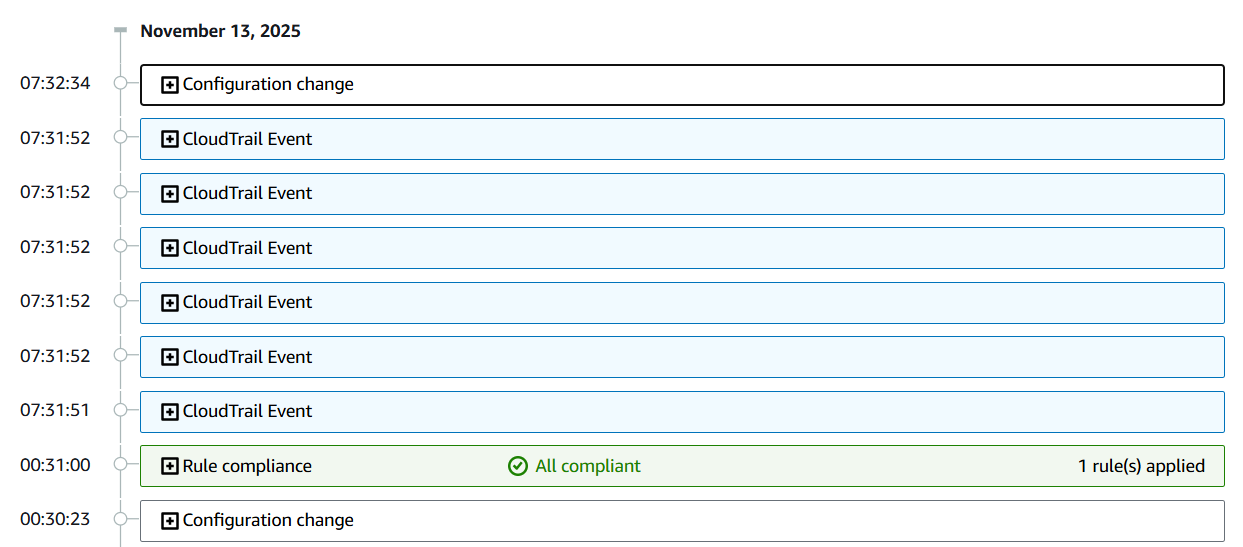
The Configuration History provides a complete timeline of your resources as far back as you have been watching it in the service. This enables some super neato options when it comes to troubleshooting and forensics! You now have the option to…
- See what changed in your database configuration because “it was working yesterday!”
- Prove to an auditor that Public Access on a specific S3 bucket was disabled on August 13th of last year
- Provide a timeline of a threat actors activities to necessary parties
Configuration Recorder
So now that we have a high level overview of some of the parts of this service let’s talk about the engine that drives it all. The Configuration Recorder is what actually does the work of watching everything, taking a snapshot of the the changes, and then saving that information as a Configuration Item in the Configuration History.
When you are working through the steps of setting up AWS Config this will be the first item you will enable and configure. It is not enabled by default and you won’t be able to do anything else until it is up and running.
There are two types of Configuration Recorders that can be created. One of those you create and the other is created and managed by AWS. Let’s do a quick summary of each…
Customer Managed Configuration Recorder
This is the one that you create and control. When you create a Customer Managed Configuration Recorder you will decide what resources you want to record. Maybe you want to only record EC2 instances right now. Maybe you come back 6 months later and adjust this to also record S3 buckets. Go for it!
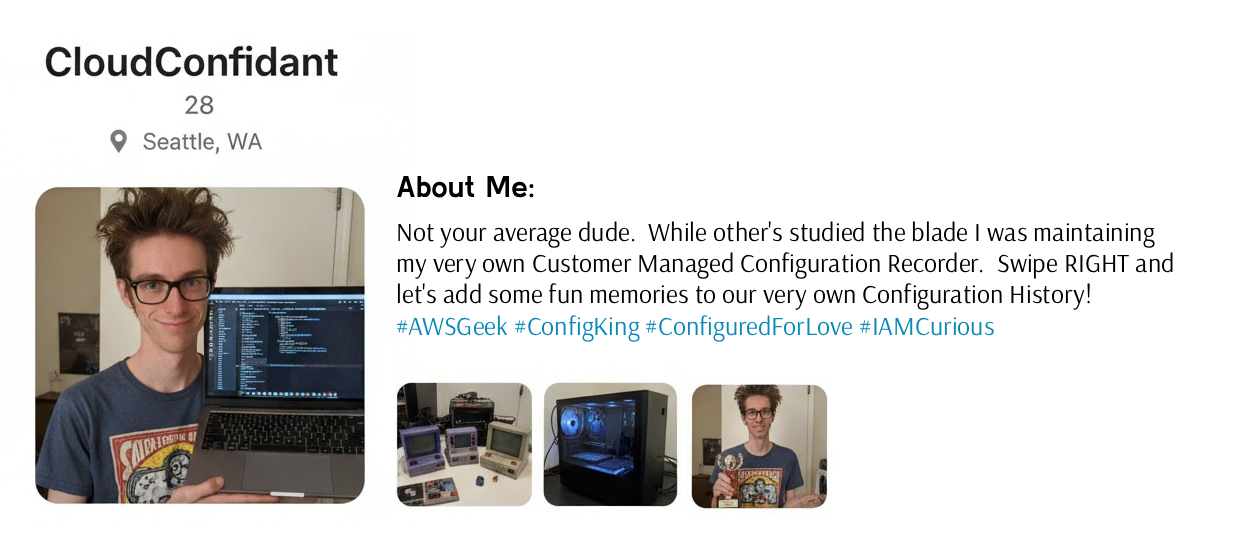
Because of all the options you have with your Customer Managed Configuration Recorder you need to understand that people will be inherently more attracted to you. Multiple studies have shown that if you casually mention this stuff in your Tinder profile you will have a 37% increase in people who swipe right!
Given the facts, it would be irresponsible for me to NOT go ahead and advise you to add this information to Tinder. However, if you do, please also be responsible and make sure you mention that you can only have one Customer Managed Configuration Recorder per region per account.
Service-Linked Configuration Recorder
Certain AWS services will actually create what is called a Service-Linked Configuration Recorder for their own use. A few examples of services that do this are…
- Amazon CloudWatch
- AWS Security Hub
- AWS Control Tower
So while we can have only ONE Customer Managed Configuration Recorder per region / per account you could see MANY Service-Linked Configuration Recorders living alongside each other. AWS manages their creation, scope, and other aspects so you won’t be able to adjust them yourself.
Proactive vs. Detective Mode
Let’s cover one more topic before we take a look at some Terraform code. AWS Config has two primary modes you can use.
Detective Mode
Detective Mode is the default mode and is basically the scenario all of the above describes. Things get watched. Things get logged. And with all of that information a history / timeline is built and maintained. Now you will be able to generate reports and view information against your infrastructure.
Proactive Mode
What if you wanted to use AWS Config to actually STOP things from happening as opposed to just being reactive and viewing reports? This is where Proactive Mode comes into play. With Proactive Mode if you are creating a resource, and if that resource is going to be born non-compliant by violating one of your rules, then AWS Config will actually prevent the creation! That’s cool right?
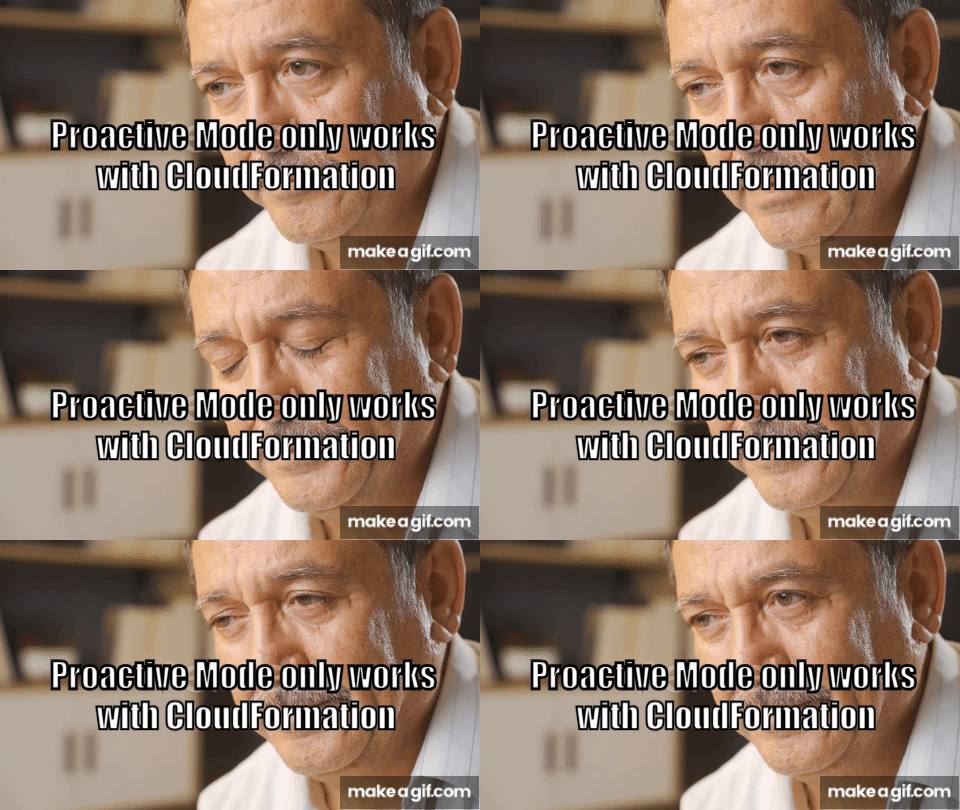
It definitely is but, at the time of this writing, there is one small catch…
Terraform Time
OK so let’s run through what a Terraform build of all of this looks like. One thing you might notice below is that we are putting the depends_on meta argument to good use today. Some of these AWS Config resources definitely need to be built in a specific order and aren’t able to be implicitly determined. You can also find a copy of all of this off of my Github.
providers.tf
We are going to initialize our AWS provider as well as populate our secret key and id so that it knows how to authenticate back to the AWS API.
provider "aws" {
  region  = var.aws_region
  access_key = "ASDFASDFASDFASDFASDFASDF"
  secret_key = "ASDFASDFASDFASDFASDFASDF"
}
terraform.tf
This is where we are going to define some high level configuration around how we want Terraform as a whole to operate.
terraform {
  required_version = ">= 1.13"

  required_providers {
    aws = {
      source  = "hashicorp/aws"
      version = ">= 6.20"
    }
  }
}
config-recorder.tf
Since this is the component that drives everything let’s build out the Configuration Recorder infrastructure first. Notice that here we are specifying we want our Configuration Recorder to ONLY record EC2 Instances / S3 Buckets and we are triggering the recorder to activate whenever something is built or changed. Lastly, note that we have to build the aws_config_configuration_recorder_status resource to actually enable our Configuration Recorder or it will not be active.
resource "aws_config_configuration_recorder" "this" {
  name     = "${var.environment}-configuration-recorder-${var.aws_region}"
  role_arn = aws_iam_role.this.arn

  recording_group {
    # Do We Want To Record EVERYTHING That AWS Config Supports?
    all_supported = false

    # Do We Want To Record Global Resource Types (IAM Users, IAM Roles, etc)?
    include_global_resource_types = false

    # Record EC2 Instances And S3 Buckets
    resource_types = [
      "AWS::EC2::Instance",
      "AWS::S3::Bucket"
    ]
  }

  recording_mode {
    # Record Changes As Soon As They Happen
    recording_frequency = "CONTINUOUS"
  }
}

# Without This Resource The Configuration Recorder Will Not Start
resource "aws_config_configuration_recorder_status" "this" {
  name       = "${var.environment}-configuration-recorder-status-${var.aws_region}"
  is_enabled = true
  depends_on = [aws_config_delivery_channel.this]
}
config-rules.tf
This is where we are building our actual rule that we want to use to verify if our resources are compliant to our needs. Notice that the scope block is saying we only want to check EC2 Instances here. Does that conflict with our Configuration Recorder resource_types argument above? NOPE!!! Yes we ARE recording the history for EC2 and S3 but our rule is only concerned with EC2. Maybe another rule will come along one day and we can put all of that sweet sweet S3 Configuration History to good use.
resource "aws_config_config_rule" "team_tag" {
  name        = "${var.environment}-team-rule-${var.aws_region}"
  description = "Check for the existence of a tag"

  source {
    owner             = "AWS"
    source_identifier = "REQUIRED_TAGS"
  }

  scope {
    # Which Resource Types Is This Rule Checking?
    compliance_resource_types = [
      "AWS::EC2::Instance"
    ]
  }

  # We Are Checking For The Existence Of A Tag Named "costcenter"
  input_parameters = jsonencode({
    tag1Key = "costcenter"
  })

  evaluation_mode {
    # Only CHECK AND REPORT For Compliance Do Not Be Proactive
    mode = "DETECTIVE"
  }

  # Ensure The Configuration Recorder Is Built First
  depends_on = [aws_config_configuration_recorder.this]
}
delivery-channel.tf
This resource is defining where we want to store our Resource Inventory and all of our Configuration History. It’s pretty simple and straightforward here in our example where we are just sending this to an S3 bucket.
# Specifies The S3 Bucket Where We Are Storing Configuration Snapshots And History
resource "aws_config_delivery_channel" "this" {
  name           = "${var.environment}-aws-config-delivery-channel-${var.aws_region}"
  s3_bucket_name = aws_s3_bucket.s3.id

  # Do Not Build This Resource Until The Below Already Exist
  depends_on = [
    aws_config_configuration_recorder.this,
    aws_s3_bucket_policy.s3
  ]
}
S3.tf
This is the S3 bucket we mentioned above. A few things about this to note…
-
the bucket is taking ownership of any objects written to it automatically via the object_ownership argument in the rule block
-
the bucket policy has to allow the AWS Config service to perform the s3:GetBucketAcl action and it is important that this statement also uses the condition block to lock down this access to ONLY approved accounts
-
the bucket policy has to allow the AWS Config service to write to the bucket and once again we want to lock this down to ONLY approved accounts
resource "aws_s3_bucket" "s3" {
  bucket = "${var.environment}-delivery-channel-${var.aws_region}"
}

# Force The Bucket To Take Ownership Of Every Object That Lands In It
resource "aws_s3_bucket_ownership_controls" "s3" {
  bucket = aws_s3_bucket.s3.id

  rule {
    object_ownership = "BucketOwnerEnforced"
  }
}

# Link The Policy Document To The Bucket
resource "aws_s3_bucket_policy" "s3" {
  bucket = aws_s3_bucket.s3.id
  policy = data.aws_iam_policy_document.aws_config_access.json
}

# Policy Document To Apply To The Bucket
data "aws_iam_policy_document" "aws_config_access" {
  # Allow The AWS Config Service To Check If The Bucket Exists And Check Permissions
  statement {
    sid    = "AWSConfigBucketPermissionsCheck"
    effect = "Allow"

    principals {
      type        = "Service"
      identifiers = ["config.amazonaws.com"]
    }

    actions = [
      "s3:GetBucketAcl"
    ]

    # Only Allow Access From Your Account
    condition {
      test     = "StringEquals"
      variable = "aws:SourceAccount"
      values   = [data.aws_caller_identity.current.account_id]
    }
  }

  # Allow The AWS Config Service To Write The Configuration Snapshots And History Files
  statement {
    sid    = "AWSConfigBucketDelivery"
    effect = "Allow"

    principals {
      type        = "Service"
      identifiers = ["config.amazonaws.com"]
    }

    actions = [
      "s3:PutObject"
    ]

    resources = [
      "${aws_s3_bucket.s3.arn}/AWSLogs/${data.aws_caller_identity.current.account_id}/Config/*"
    ]

    # Only Allow Writes From Your Account
    condition {
      test     = "StringEquals"
      variable = "aws:SourceAccount"
      values   = [data.aws_caller_identity.current.account_id]
    }
  }
}
iam.tf
Up above in config-recorder.tf you might have noticed that we were assigning an IAM role to the Configuration Recorder so it can do it’s job. This file holds that role and the necessary policies which include one AWS Managed Policy (AWS_ConfigRole) and one that we created to allow actions to the S3 Bucket.
# Allow The AWS Config Service To Assume The Role
data "aws_iam_policy_document" "assume_role_policy" {
  statement {
    actions = ["sts:AssumeRole"]

    principals {
      type        = "Service"
      identifiers = ["config.amazonaws.com"]
    }
  }
}

# Need to create a role here that attaches the managed data source Policy
resource "aws_iam_role" "this" {
  name               = "${var.environment}-aws-config-${var.aws_region}"
  assume_role_policy = data.aws_iam_policy_document.assume_role_policy.json
}

# Allow Writing To The S3 Bucket - The Policy
resource "aws_iam_policy" "s3_permissions" {
  name        = "${var.environment}-aws-config-s3-permissions-${var.aws_region}"
  description = "Permissions for AWS Config to write to S3"
  policy      = data.aws_iam_policy_document.s3_permissions.json
}

# Allow Writing To The S3 Bucket - The Policy Document We Are Using For The Above Policy
data "aws_iam_policy_document" "s3_permissions" {
  statement {
    actions = [
      "s3:PutObject",
      "s3:GetBucketAcl"
    ]

    effect = "Allow"

    resources = [
      aws_s3_bucket.s3.arn,
      "${aws_s3_bucket.s3.arn}/*"
    ]
  }
}

# Attach The Necessary Policies To The Role
resource "aws_iam_role_policy_attachments_exclusive" "policy_attachments" {
  role_name = aws_iam_role.this.name
  policy_arns = [
    data.aws_iam_policy.aws_configrole.arn,
    aws_iam_policy.s3_permissions.arn
  ]
}
data.tf
Since we are querying some existing live infrastructure in our code we need to build the data sources to look it up and properly reference it.
# Get The Current Account ID
data "aws_caller_identity" "current" {}

# Managed Policy That Provides Permissions For AWS Config To Track Changes To All Resources
data "aws_iam_policy" "aws_configrole" {
  name = "AWS_ConfigRole"
}
variables.tf
You will have already seen these variables used in the above code. We are defining them here.
variable "aws_region" {
  description = "The AWS Region in which we are building this infrastructure"
  type        = string
}

variable "environment" {
  description = "The environment in which we are building this infrastructure"
  type        = string
}
terraform.tfvars
And here we are assigning the actual values to the variables we just defined.
aws_region  = "us-east-1"
environment = "dev"
Tell Them What You Witnessed Here Today
Hopefully, if you made it this far, you found this helpful in some form or fashion. My goal with this blog is purely to force me to think about these builds in depth as I explain them.


Start the conversation